

Rendezvous is now Bonjour
Apple (due to legal issues) have changed the name of Rendezvous to Bonjour. The current version of this page is here, this archived page is retained for those still using Rendevous for Windows. Note that the download for Rendezvous is no longer available.
Printing from a Windows XP PC to a printer attached to an Airport Extreme Base Station or Airport Express using Rendezvous
The following process is used in printing from an XP PC to a printer
which is connected to the USB port of the Airport Extreme Base Station
(AEBS) or Airport Express (AX) using the Rendezvous for Windows preview
available to download from this page.
This process will also work for other Rendezvous networked printers.
Download and install Rendezvous for Windows Technology Preview.
You will need to find Printer Setup Wizard which is usually installed onto the Desktop (and not on the Start Menu).

If not you can find it in the main Program Files area of the computer
which will usually reside in
C:\Program
Files\Rendezvous
Double click PrinterSetupWizard.exe
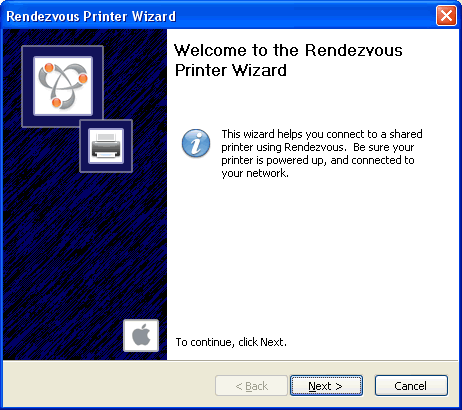
Click Next, you should be then be presented with a list of Rendezvous Printers. Select the printer you wish to use.
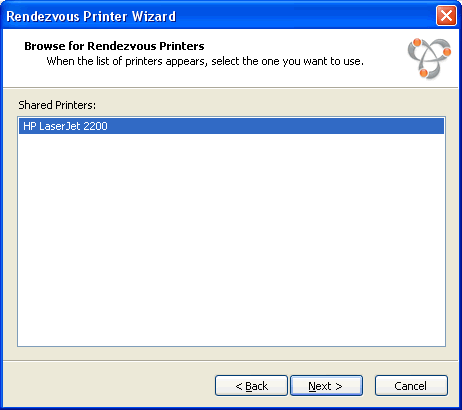
Click Next
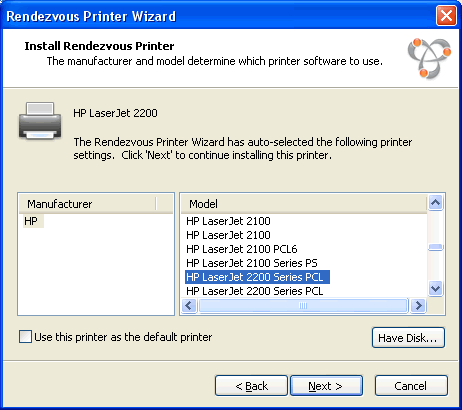
Select the printer type and model (or use the Have Disk... if applicable), in this example I am using a HP LaserJet 2200.
If you are having problems with finding the correct Printer Driver when using this method, please refer to Problems with finding Printer Driver when using printer connected to Airport Extreme or Express
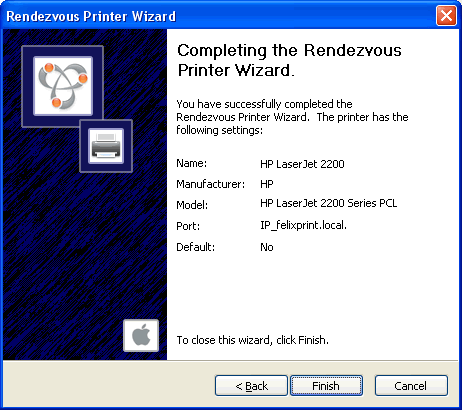
Click Finish
You should notice that the Port says IP_felixprint.local the middle bit, felixprint is the name of the Airport Express which the printer is connected to. You should see the name of the AEBS or AX you have.